How to add mocks to API Spector Cloud
 Roy de Kleijn · · 2 min read
A local mock is perfect while you build on your own machine, but a teammate on another laptop or a CI job in the cloud cannot reach it. Hosted mocks in API Spector Cloud solve that: they are always on, and they answer on a public URL anyone you share it with can call.
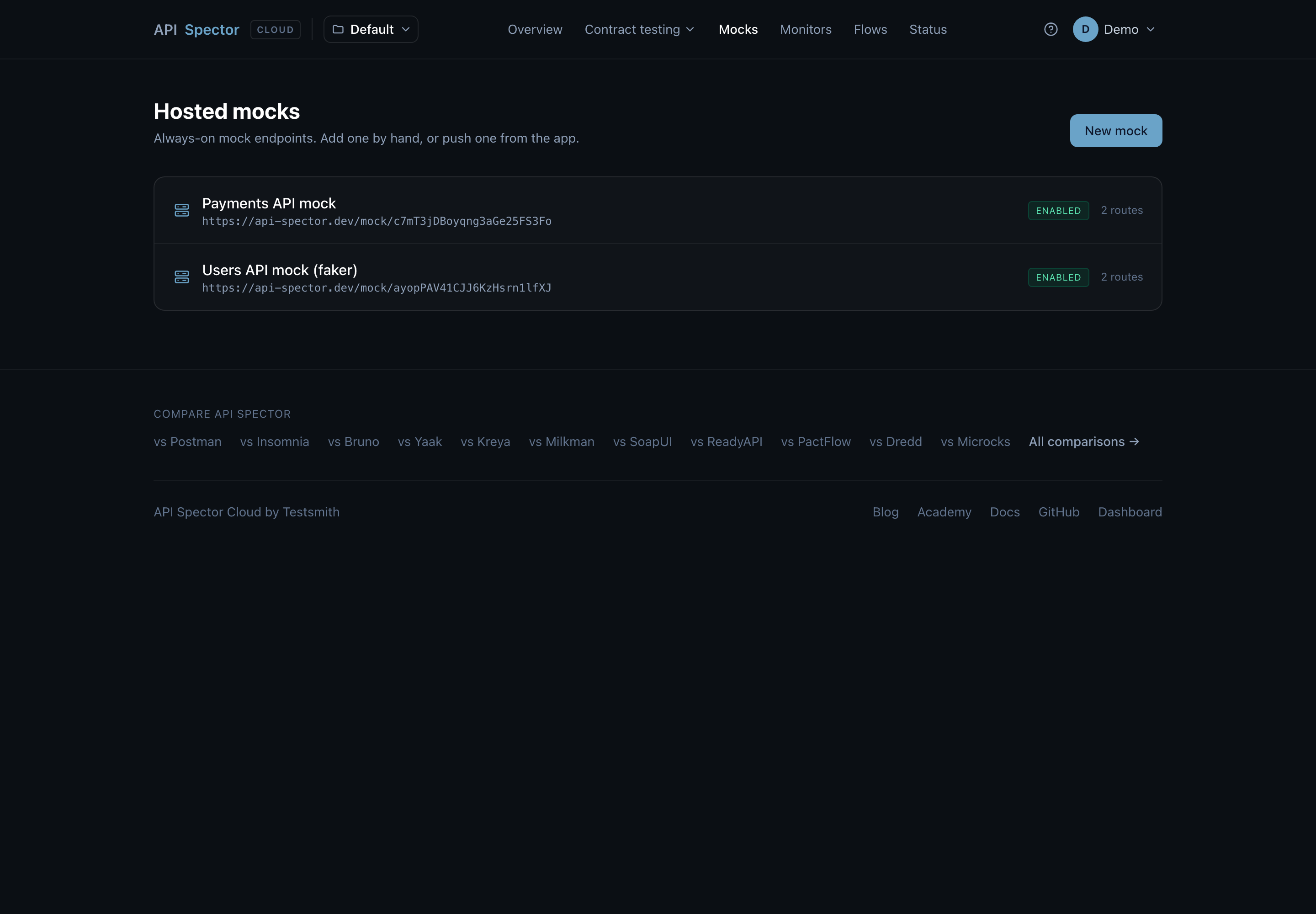
1. Open the Mocks page
In the cloud dashboard, open Mocks. You can add one by hand here, or push one you already built in the desktop app.
2. Create a mock
Click New mock. Give it a Name and a Subdomain (the slug in its URL), an optional description, an Auth type, and leave it Enabled. Then add Routes: each route has a method, a path (with params like /charges/:id), a status code, and a response body.
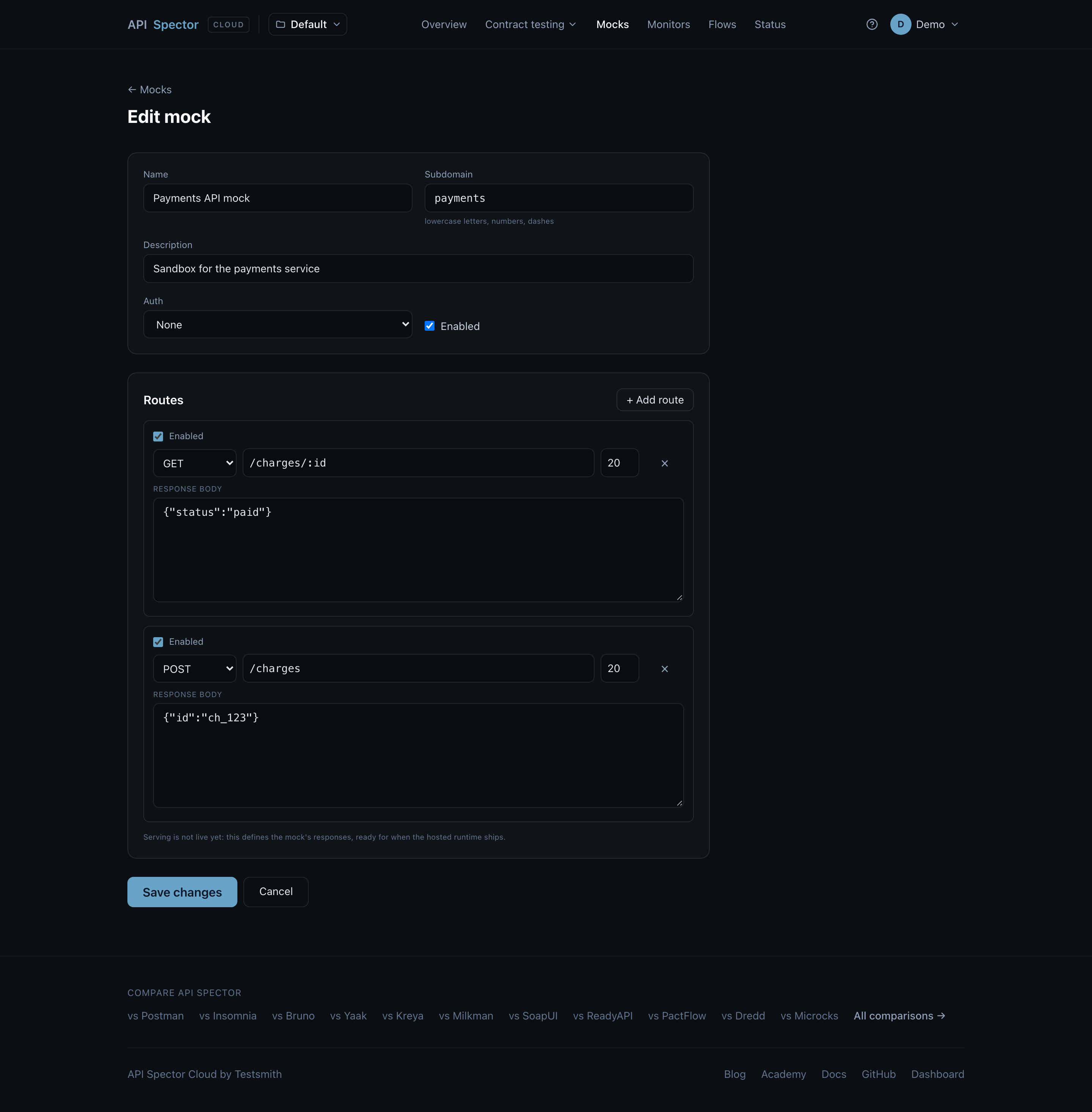
Response bodies can use {{...}} tokens: request data such as {{request.params.id}}, and faker and dayjs helpers such as {{faker.internet.email()}}, so a mock can return fresh, realistic data on every request instead of one canned payload.
3. Hit the live URL
Save, and the mock is live at a public, unguessable URL. Point your app, a teammate, or a CI job at it.
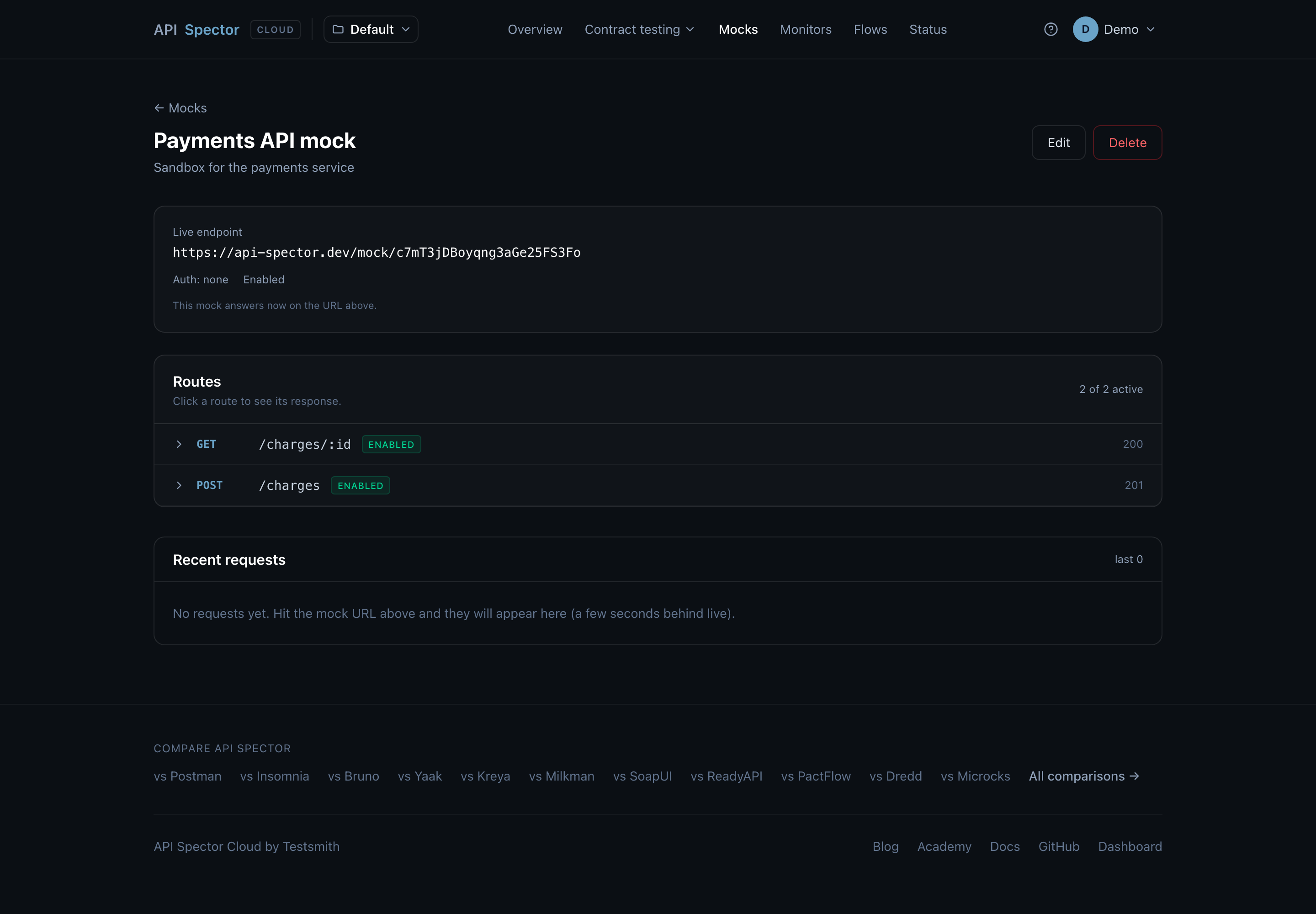
The mock's page shows the live endpoint and every route, and recent requests appear below so you can watch traffic arrive.
Push from the app
If you already built a mock in the desktop app, use Push to cloud on that mock rather than recreating it by hand. It lands here as a hosted mock with the same routes.
Why it matters
A hosted mock lets a frontend, a partner, or a pipeline build against an API that does not exist yet, or stand in for one that is flaky, without anyone having to run anything locally.