How to test a protected endpoint in API Spector
 Roy de Kleijn · · 2 min read
Most real APIs need credentials. API Spector keeps them in the Auth tab, and keeps the secrets off disk.
1. Open the Auth tab
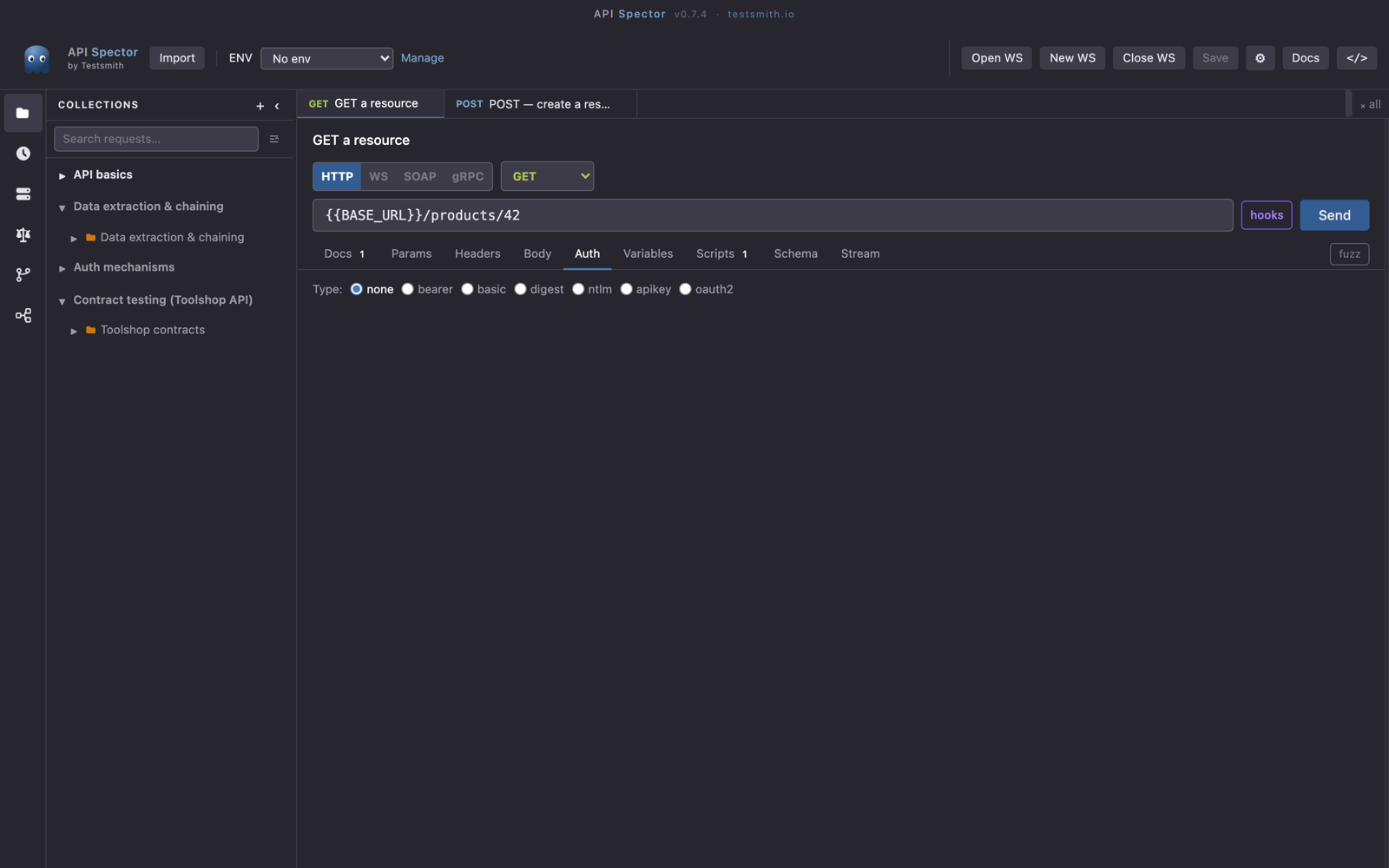
In the request, open the Auth tab and pick an auth scheme. API Spector supports the common ones, including Bearer tokens, Basic auth, and OAuth2, with the full OAuth2 flows handled in this tab.
2. Use a variable, not a hardcoded token
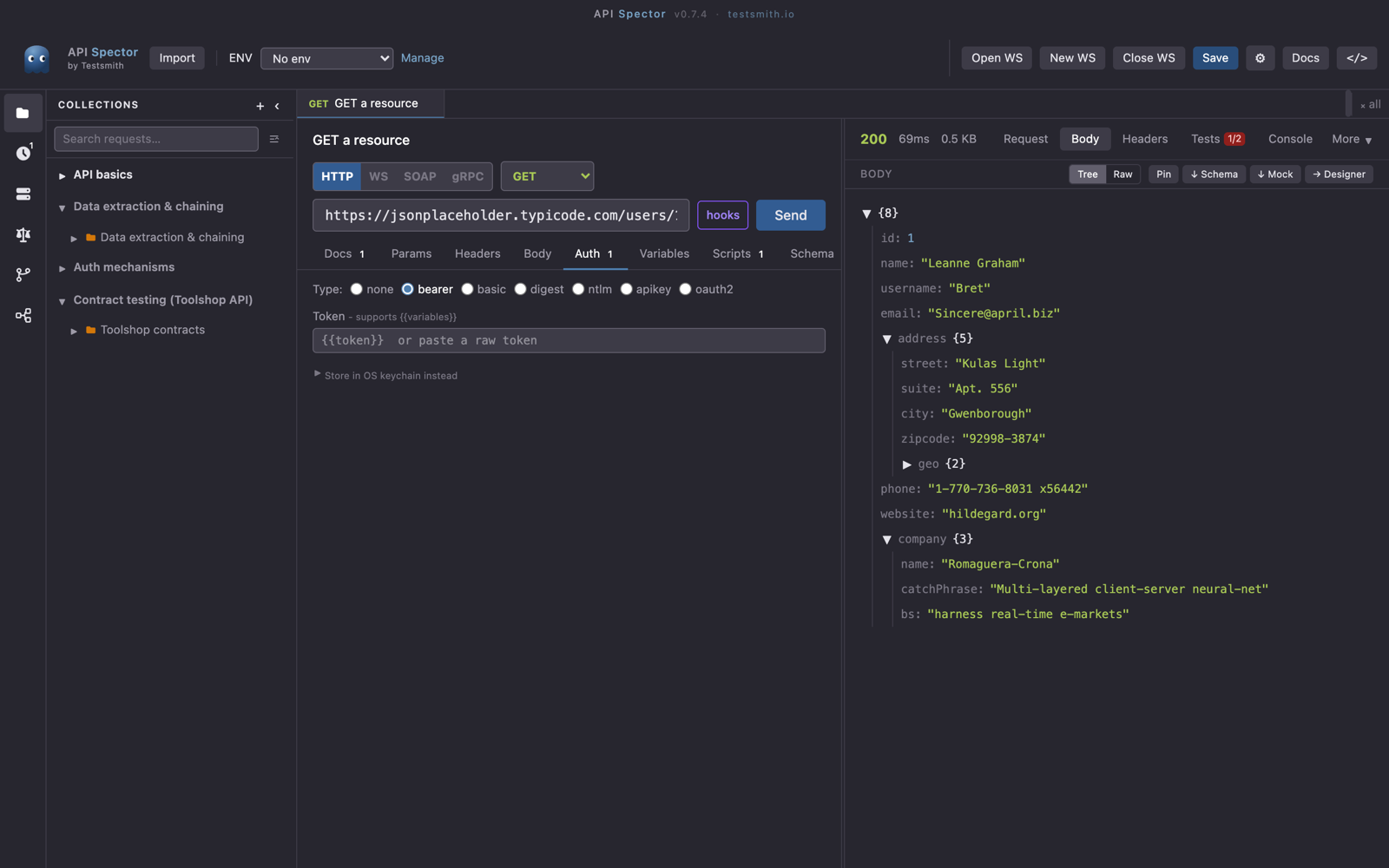
Rather than pasting a token, reference a variable: put {{token}} in the auth field and define token in your environment. That keeps the value out of the request and lets you swap it per environment. See the guide on environments and variables.
3. Keep the secret off disk
For anything sensitive, you have two options:
- Store it in your OS keychain with the "Store in OS keychain" option in the Auth editor, so it never lands in the workspace file.
- Reference an external secret manager. Put something like
vault:secret/data/app#tokenin the field and API Spector resolves it at send-time. Vault, AWS, Azure, and 1Password are set up under Workspace settings → Secrets.
4. Send
Press Send. The credential is applied to the request, resolved from the keychain, environment, or secret manager as configured. Because the value is resolved at send-time, you can commit the workspace to Git without leaking anything.