How to use environments and variables in API Spector
 Roy de Kleijn · · 2 min read
Environments let you define values like baseUrl and token once and reuse them across every request. Switching from local to staging to production becomes one click, with no edits to the requests themselves.
1. Open the environment editor
In the toolbar you will see an ENV label with a dropdown. Open it and choose Edit (or Manage) to open the environment editor.
2. Add an environment
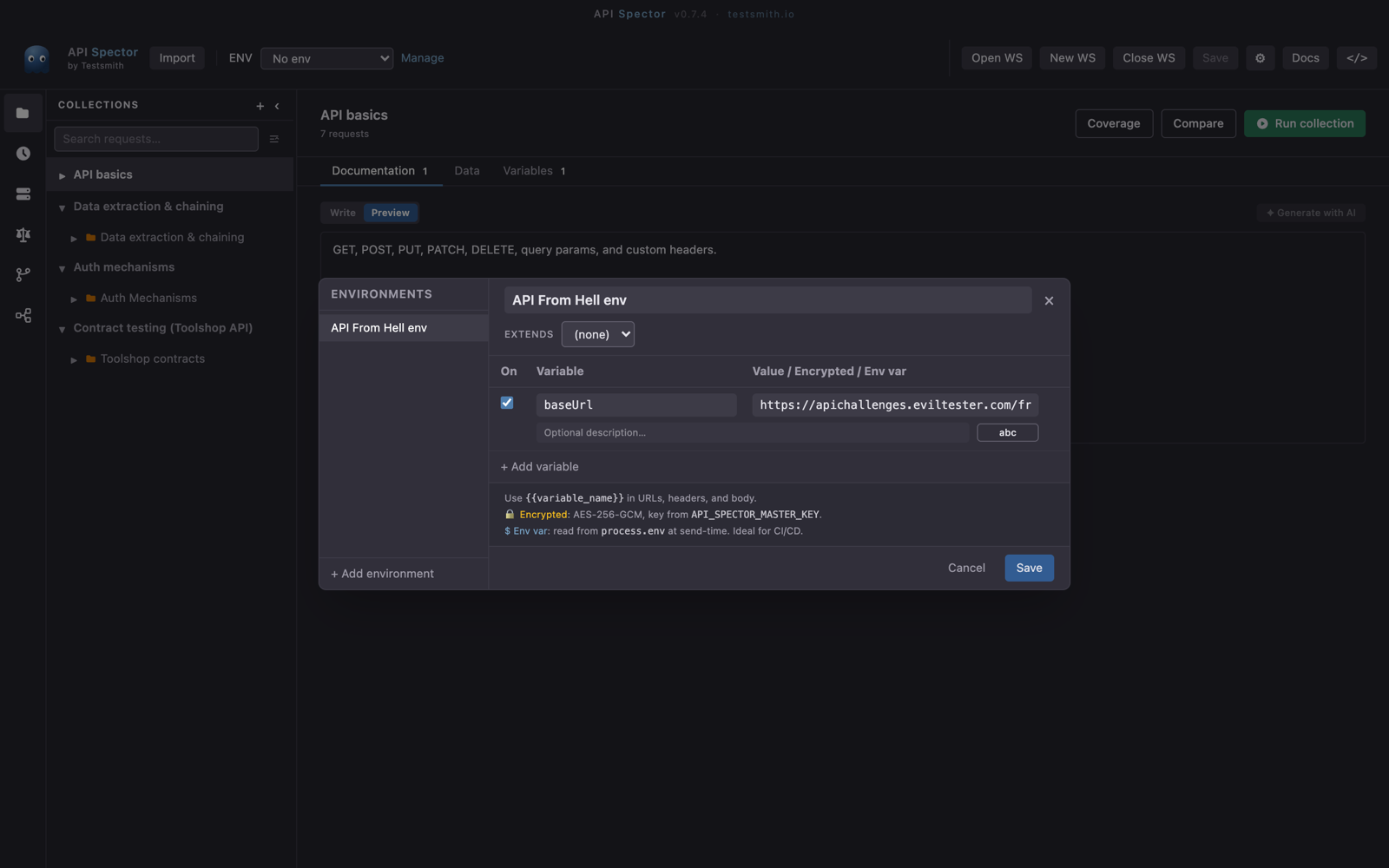
Click + Add environment and give it a name, for example Local or Staging. You can keep several environments side by side and duplicate one to seed the next.
3. Add variables
Click + Add variable and set a name and value. Reference it anywhere a value is accepted, using double braces:
{{baseUrl}}/users/{{userId}}
This works in the URL, headers, body, and cell values. Each variable row has a mode toggle with three options:
- abc (plain): a normal value stored in the workspace.
- enc (encrypted): AES-256-GCM, unlocked with your master key. The editor shows a fingerprint so you can confirm the value without revealing it.
- env (OS environment variable): read from
process.envat send-time and never written to the project. This is the right choice for CI, where the value comes from a pipeline secret.
4. Inherit from another environment
Each environment has an Extends dropdown. Point Staging at a shared base environment and it inherits those variables, so you only override what differs.
5. Switch the active environment
Pick an environment from the ENV dropdown in the toolbar. If it contains encrypted secrets, API Spector asks for your master password first. From then on, every {{variable}} resolves against that environment.
Precedence
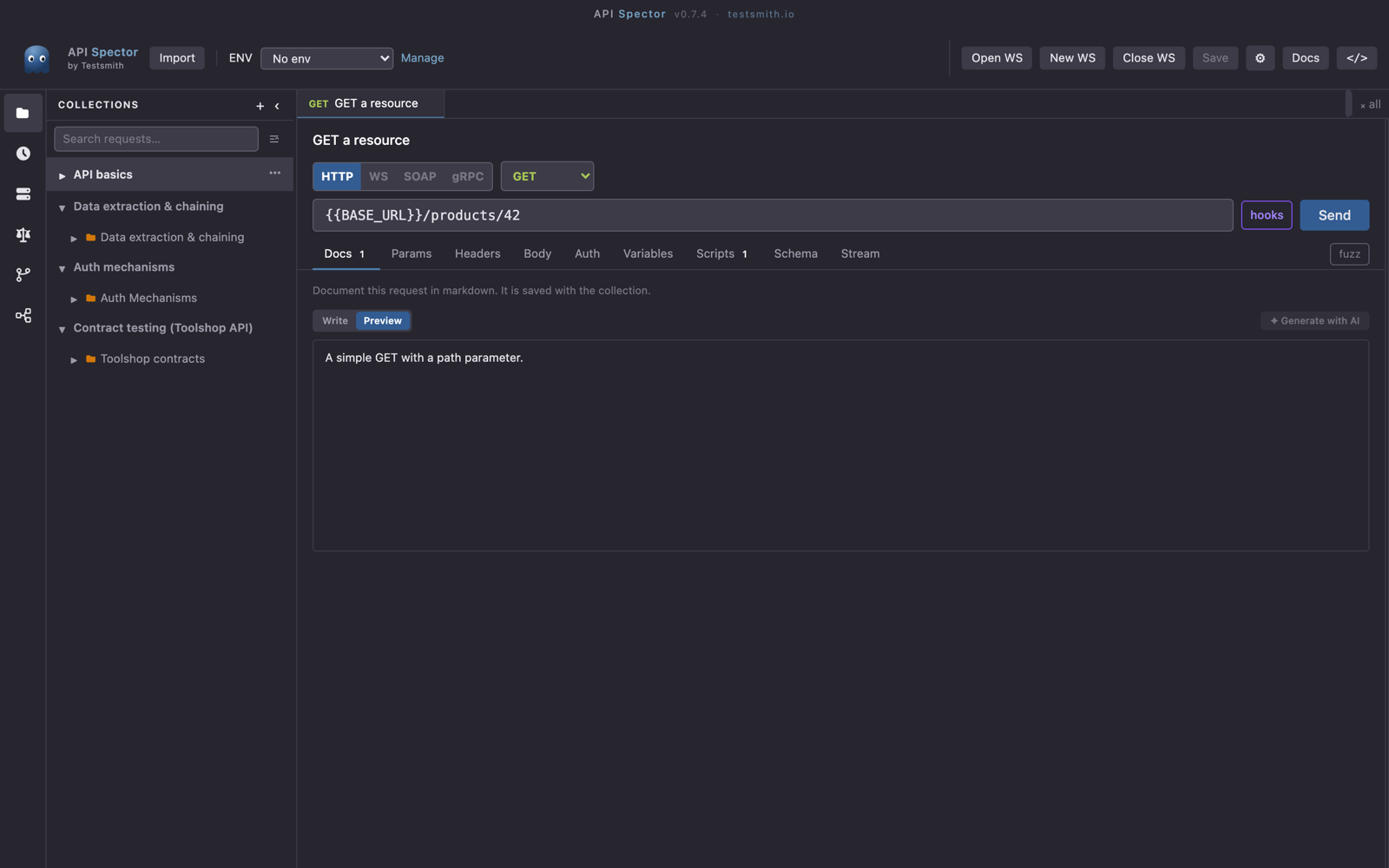
When the same name is defined in more than one place, API Spector resolves it in this order: session and local values first, then the active environment, then the folder chain, then collection variables.
Reference external secrets
If you keep secrets in a manager, you do not have to copy them in. Put a reference such as vault:secret/data/app#token in a variable or an auth field and API Spector resolves it at send-time, without writing it to the workspace. HashiCorp Vault, AWS, Azure, and 1Password are configured under Workspace settings → Secrets.