How to use 1Password with API Spector
 Roy de Kleijn · · 2 min read
API Spector can pull values from 1Password at send-time using the familiar op://vault/item/field reference, so a credential stays in 1Password instead of being copied into a request.
What you need
- A 1Password Connect server that can read the vault holding your item, and its access token. Connect is a small service you run next to your tools; it holds a credentials file and serves items over a local API.
Create a Connect server and credentials in your 1Password account, then run it:
docker run -d --name op-connect -p 8080:8080 \
  -v "$PWD/1password-credentials.json:/home/opuser/.op/1password-credentials.json" \
  1password/connect-api:latest
Keep the generated access token for the next step.
1. Configure the Connect host
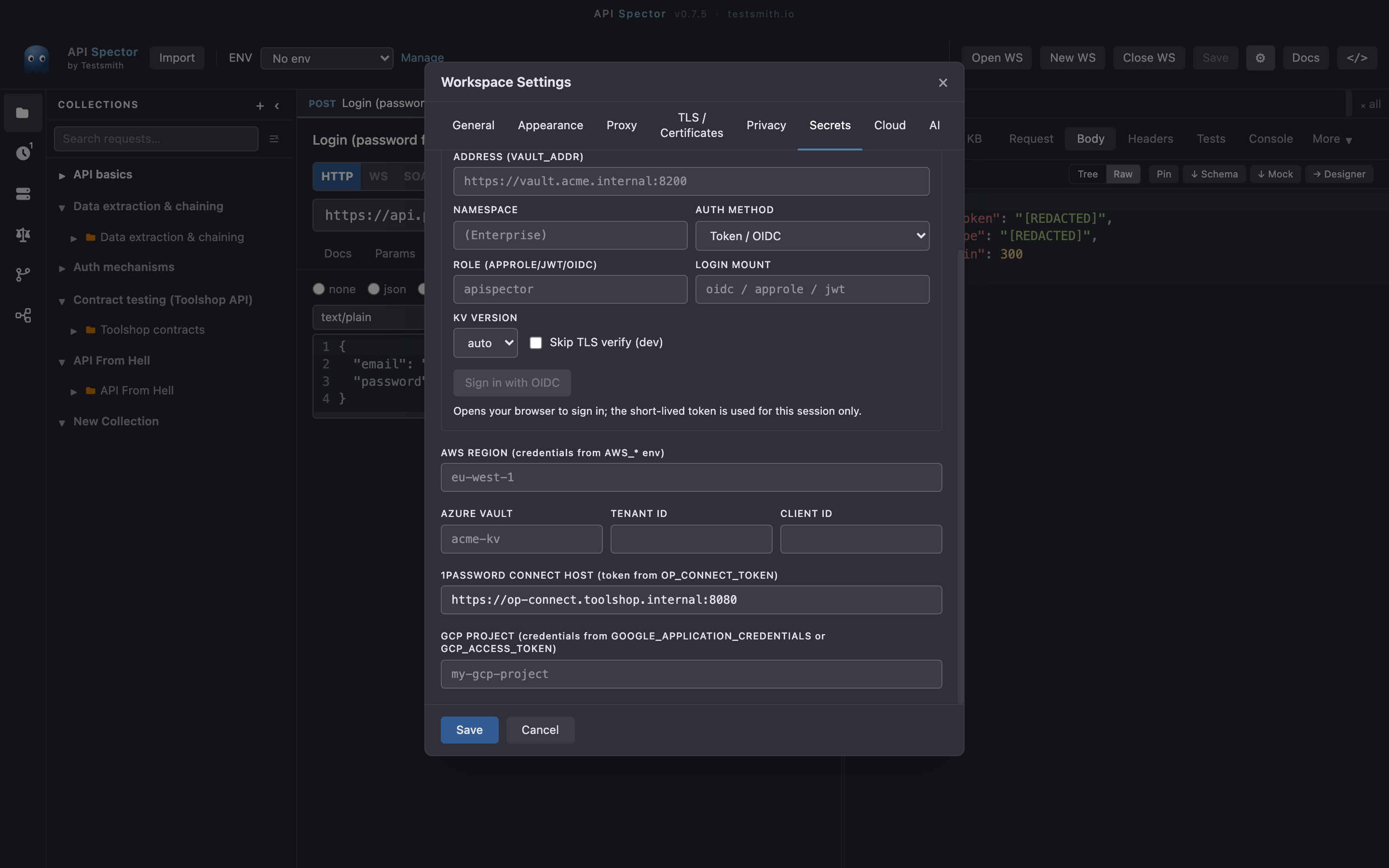
Open Workspace settings -> Secrets and set 1Password Connect host to the server URL (OP_CONNECT_HOST). The access token is read from OP_CONNECT_TOKEN in your environment, not the workspace.
2. Reference the item
op://Toolshop/api-token/credential
op://vault/item/field
Use it in an environment variable, an auth field, or inline with {{op://Toolshop/api-token/credential}}.
3. Send it
At send-time, API Spector asks the Connect server for the field, substitutes it, and redacts the value from the response, the history, and exports. Because Connect runs on your own infrastructure, the item never leaves your network on the way to API Spector.
Why it matters
The item stays in 1Password and is fetched through your own Connect server on each run. The workspace holds only the host, so it is safe to commit and share. See the companion guides for AWS, Azure, GCP, and HashiCorp Vault.