How to use AWS Secrets Manager with API Spector
 Roy de Kleijn · · 2 min read

If your secrets live in AWS Secrets Manager, API Spector can read them at send-time from an aws: reference using your normal AWS credentials, so nothing sensitive is stored in the workspace.
What you need
- A secret in AWS Secrets Manager, and its region.
- AWS credentials with
secretsmanager:GetSecretValue: youraws configureor SSO environment locally, or a role assumed via OIDC in CI.
Create a secret:
aws secretsmanager create-secret --name prod/toolshop \
  --secret-string '{"api_token":"tok_live_7Qn4Zs2fK9dYpV3xB"}' \
  --region eu-west-1
1. Set the region
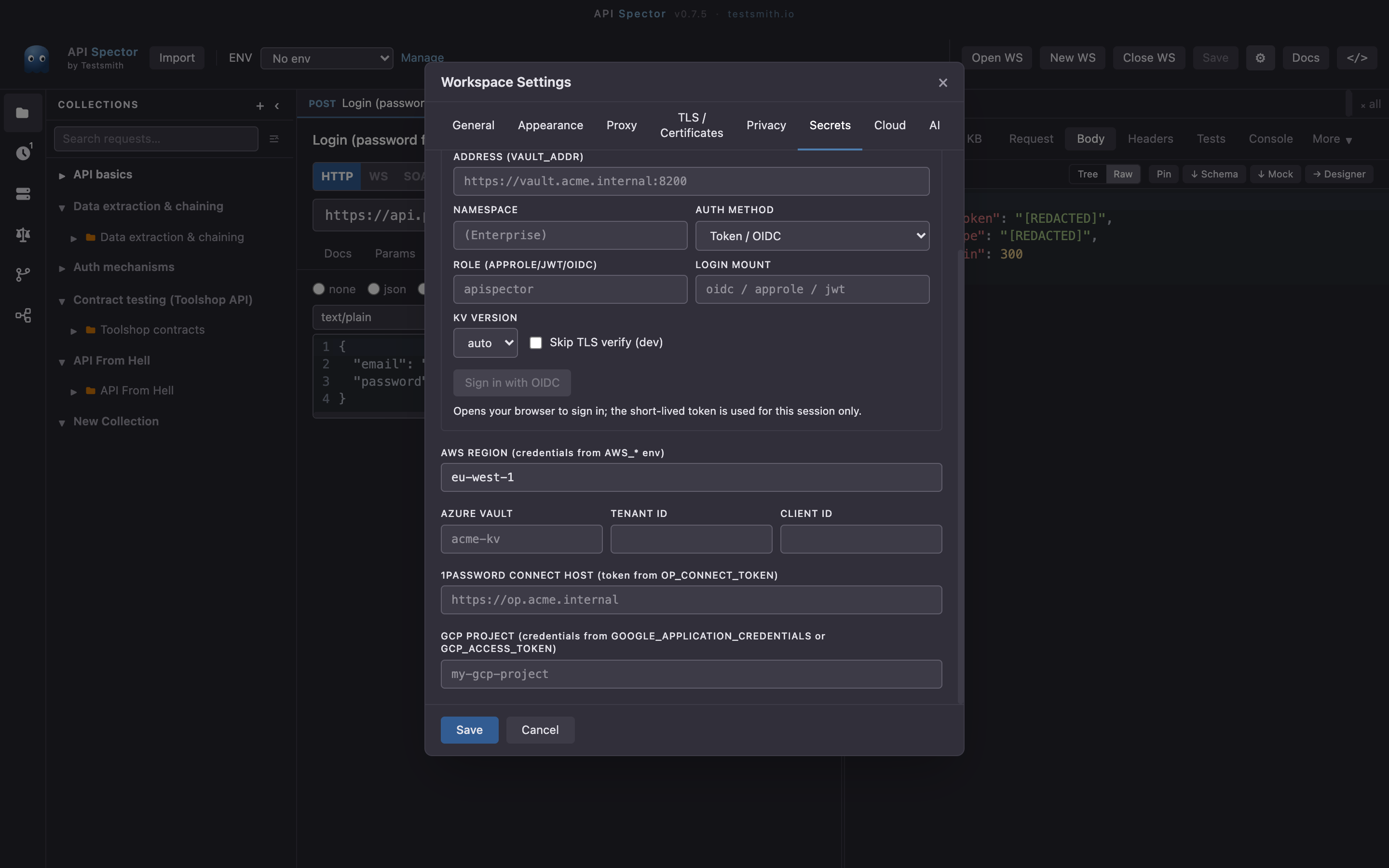
Open Workspace settings -> Secrets and set AWS region. Credentials come from the standard AWS_* environment variables, never the workspace.
2. Reference the secret
aws:prod/toolshop#api_token   # one field of a JSON secret
aws:prod/toolshop-token       # a plain-string secret
Use the reference in an environment variable, an auth field, or inline with {{aws:prod/toolshop#api_token}}.
3. How authentication works
API Spector signs the Secrets Manager request with SigV4 using AWS_ACCESS_KEY_ID, AWS_SECRET_ACCESS_KEY, and AWS_SESSION_TOKEN (when set), in the region from AWS_REGION. In CI, assume a role via OIDC in a prior step and API Spector uses the exported credentials; no static keys are stored.
4. Send it
The reference resolves at send-time and is redacted from the response, the history, and any export. One JSON secret can hold several fields, each read with its own #key, and the whole secret is fetched once per run and reused.
Why it matters
The secret stays in AWS and is pulled fresh on each run, locally and in CI alike. The workspace keeps only the region, so it is safe to commit. See the companion guides for Azure, GCP, HashiCorp Vault, and 1Password.